Calendar
The calendar can be used to organize a variety of events for users, including events for shared collections, and individual elements within the Chemotion ELN.
Accessing the calendar
The calendar can be accessed in 2 ways:
- The right side of the action bar, next to the user information
- Within an element's header

Element specific events can be created for the following elements:
- Samples
- Reactions
- Screens
- Research Plans
Calendar features
Header
The calendar can be moved around the Chemotion ELN window by clicking on the header. The header has 4 buttons:
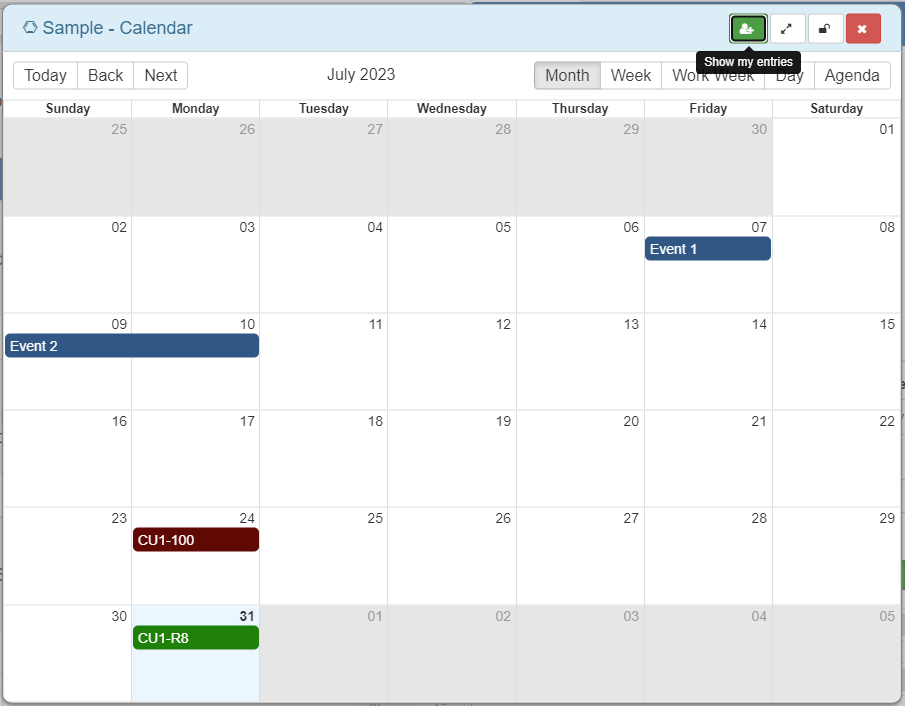
- Show entries (toggles visibility of shared collection events in main calendar / all user events in element specific calendar)
- Full screen
- Lock calendar (keep calendar open whilst using Chemotion ELN)
- Close calendar
Main Toolbar
The main toolbar allows users to change the calendar view, and move back and forth.
The user can select between 5 different views:
- Month
- Week
- Working week
- Day
- Agenda - shows upcoming events for a month after the currently selected date.
The main calendar shows all user created events / shared collection events.
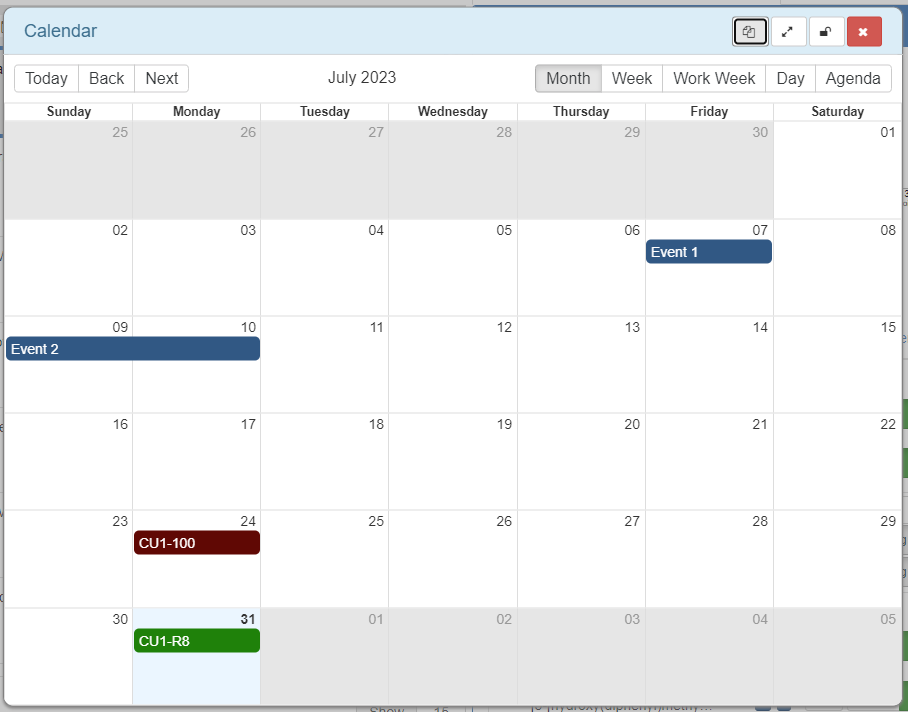
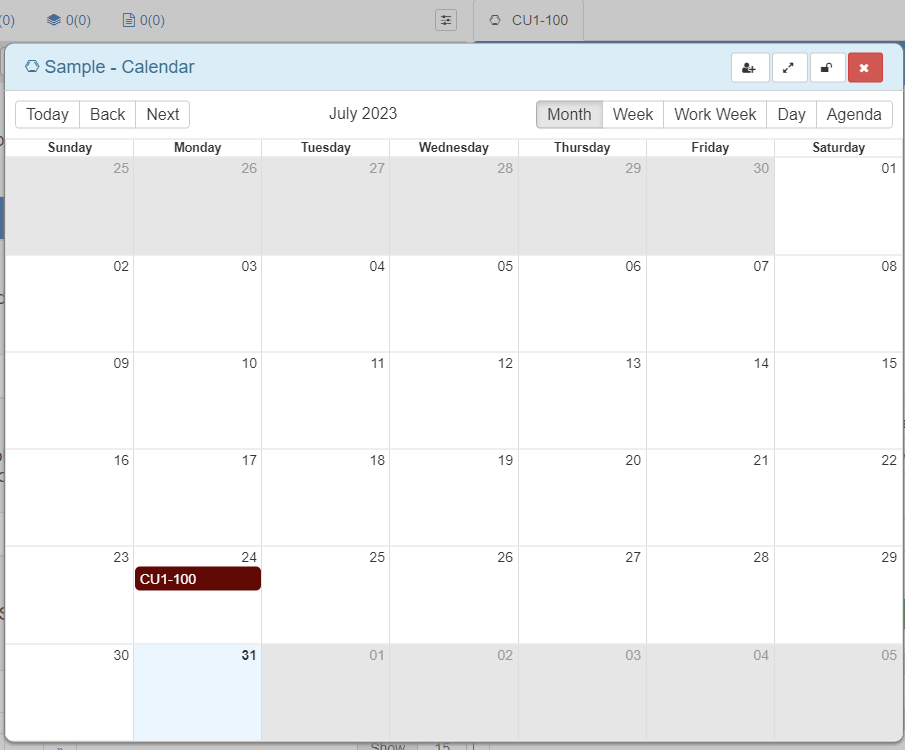
An element specific calendar shows its own events / all user created events.
Events
Creating events
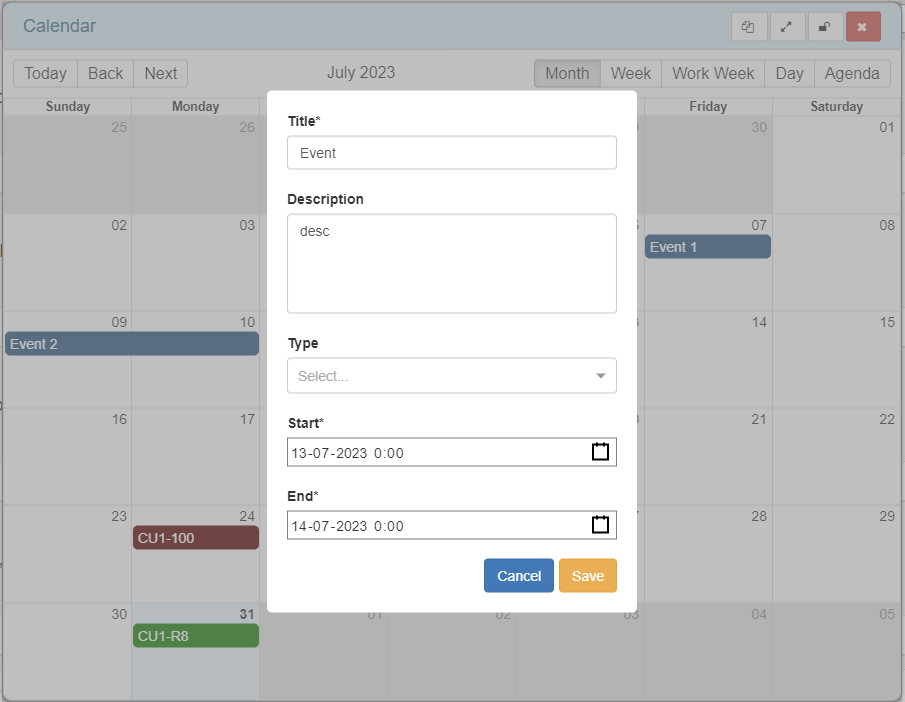
Events can be created by clicking anywhere within the calendar. The following event details can be designated:
- Title (required)
- Description
- Type
- Duration (defaults: 24 hours if creating in month view / 15 minutes)
Default event types:
- Reservation
- Duration
- Handover (screen, research plan)
- Reminder (sample, reaction, research plan, screen)
- Report (sample, reaction, research plan, screen)
- Meeting
- Maintenance
- Availability
Modifying events
Click on an event to open the modal and modify any event attributes.
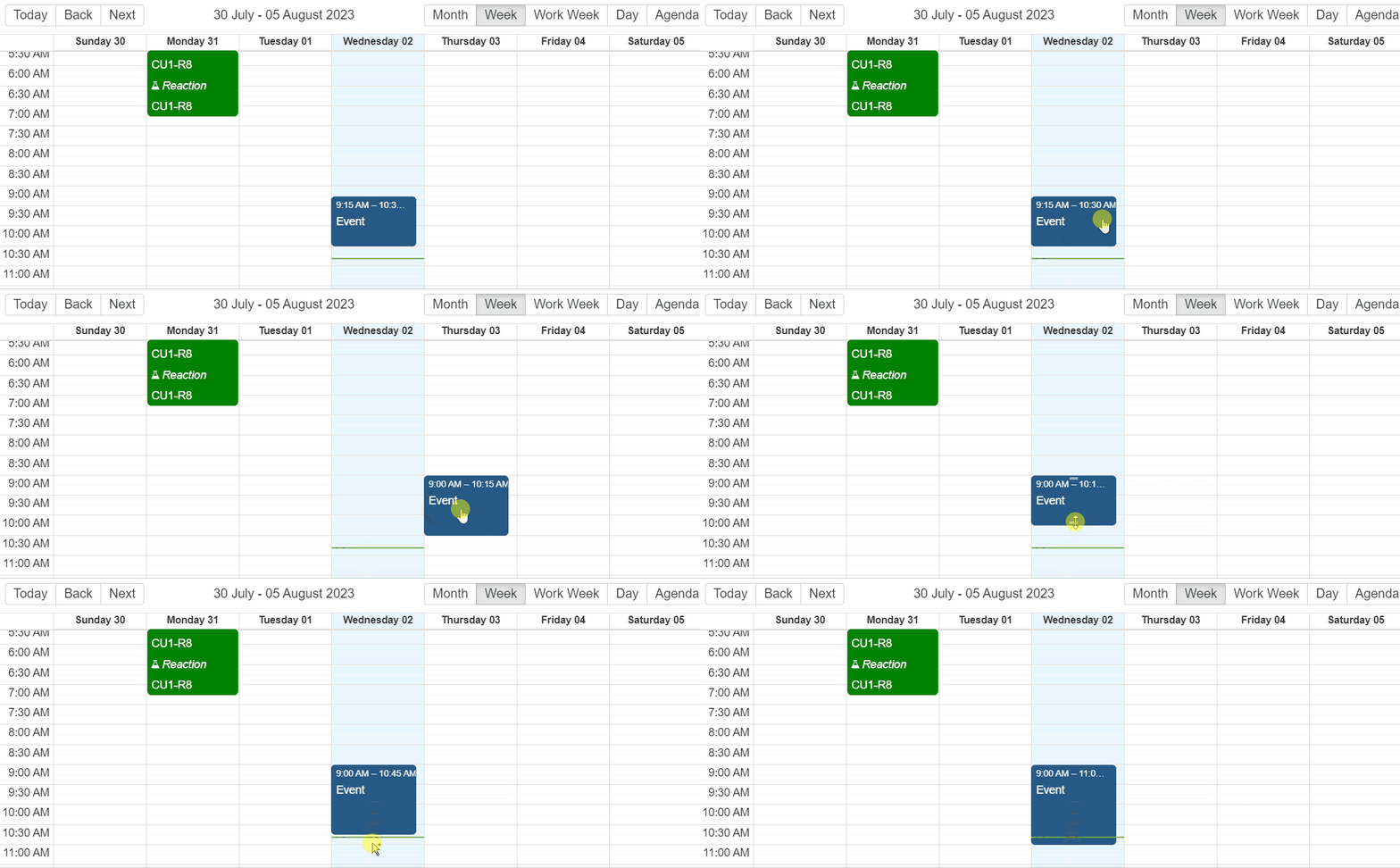
Modifying the event time and duration can be done by dragging the event in the calendar view: