Elements
A fundamental building block within the system.
Reader: DesignerElement represents a fundamental building block within the system. It encapsulates specific functions and features to suit your application according to your design.
User Interface
Element Template List
The Element templates are conveniently displayed in a grid layout. You can:
- ✅ Sort the grid by clicking on the column headers.
- ✅ Filter the grid by clicking on the filter icon located at the right of the column headers. (Replaced by Quick Filter in LabIMotion v2)
- ✅ Quick Filter – Find templates by entering text. (Available since LabIMotion v2)
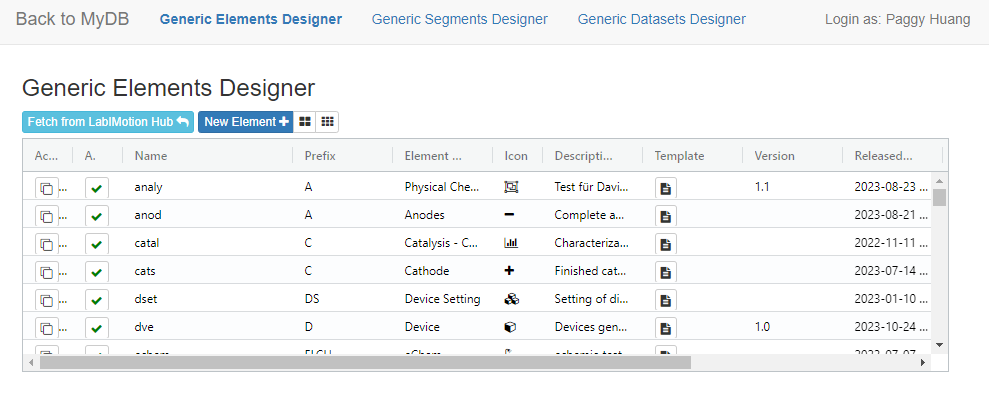
Watch the video below to see how easy it is to perform sorting and filtering tasks in a list.
YouTube will track your interaction with them.
Example: Generic Dataset Designer
Getting Started with Element Templates
Four main areas for different functions:
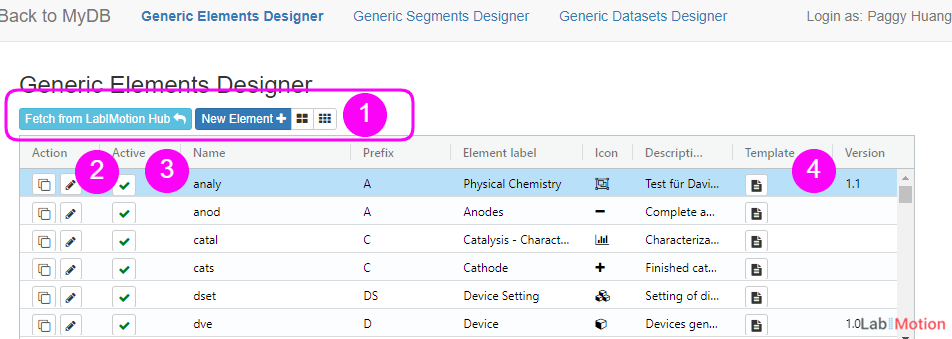
1. Toolbar:
- Fetch from LabIMotion Hub : Retrieve public templates from the template hub.
- New Element : Create a new element template.
- Large Grid Size or Small Grid Size : Select your preferred grid view.
2. Action: Within this section, you'll find actions that can modify or delete data. These actions include copying an element, editing element attributes, and deleting an element.
3. Active: Use this area to activate or deactivate element templates.
4. Template: Click here to either view or design the template. Can't wait to design a template? See the Components available for use in the Designer View.
Element Attributes
A list of element attributes and their explanations is provided below:
Element/Name
A distinctive identifier within the system. It won't be editable once the element is created.
Prefix
A set of letters to indicate the element.
Element Label
A more easily readable and understandable name is presented to end-users, aiding them in recognizing and understanding the element they are interacting with.
Icon
An icon to represent this element.
Description
Additional information is available for the element, and this information becomes visible when the end-user hovers their cursor over the element's icon.
Version
The version number of the released element.
Released at
The timestamp indicating when the selected element was last released.
Updated at
The timestamp indicating the last update time of the selected element.
Id
The unique identifier of the selected element.
Sync Time
The most recent synchronization timestamp.